^ Ne reče šta si uradio i kako ti je prošlo sync-ovanje Gmail-a i Outlook-a?
Kako mi savetuješ da uradim samo
sync mejlova između Gmail-a i Oulook-a?
1) moja
primarna adresa je
[email protected] i na tu adresu mi svi pišu.
2)
Outlook 07 (ne Express) je setovan da se preko
POP3 konekcije nakači na
SBB server, pošalje i skine poštu (
delete after downloading)
3)
Gmail je setovan da se preko iste
POP3 konekcije nakači na SBB server i skine poštu (
don't delete after downloading); šalje je kao
From: [email protected]
Ovim imam kopiju svih mejlova koje sam dobio na Gmail-u a kasnije samih skinuo u Outlook-u. Sve što pošaljem sa Gmail-a (Gmail Sent Items)
imam
samo na Gmail-u, i isto važi i za Outlook.
Da li navedena 1+2+3 struktura ima smisla ako želim da sync-ujem?
Ili bi
smislenije bilo ovo budu koraci:
a)
Gmail skida poštu sa SBB servera i briše je
b)
Oulook se sync-uje sa Gmail-om (DL primljenih i poslatih poruka)
Gmail i Outlook sync-uju se preko IMAP konekcije.
Da li bi trebalo da promenim gore navedenu organizaciju? Želim da imam isti Inbox, Sent Items, Drafts, Deleted Items (Trash).
UPDATE:
Napravio sam novi Gmail account i otvorio novi Outlook PST fajl. Sledio
Gmail help za IMAP -- sve savršeno radi, testirao, pisao, brisao, sve živo!
:) Baš mi se dopada. I Offline rad. Definitivno želim za ubuduće!
E, sad ne znam šta se dešava u onom mom prethodnom slučaju, gde imam već
gomilu poruka i u Gmail-u i u Outlook-u, strah me to da povežem. Video sam
da je neko napisao da "traljavo radi".
Savet? :)
UPDATE 2:
Gmail Help kaže:
Citat:
Recommended IMAP client settings
As a general rule, we suggest the following.
Sending:
[*]Do NOT save sent messages on the server. If your
client is sending mail through Gmail's SMTP server, your sent messages
will be automatically copied to the [Gmail]/Sent Mail folder.
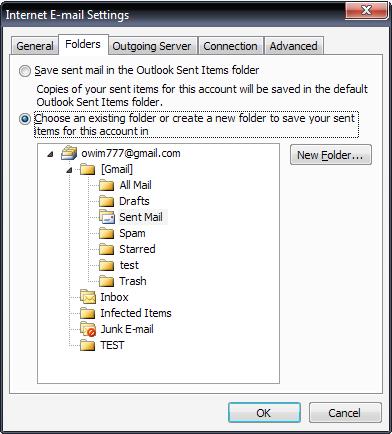
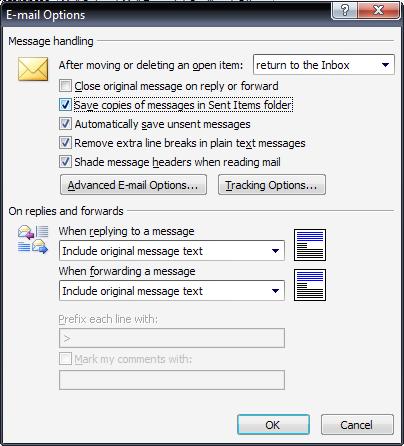
Takođe kaže i da isključim smeštanje poruke u Sent Items nakon slanja. To su ove dve slike. Kad to uradim, sve je baš kao što treba. Međutim, ja sem Gmail IMAP pošte u Outlook-u
skidam i POP3 poštu s drugog naloga i tu želim da mi se
čuvaju poruke u Sent Items! Kad je lepo podešen Gmail IMAP u Outlook-u, onda je problem sa POP3 poštom, jer "Do NOT save sent messages in Sent Items" odnosi se na sve otvorene PST fajlove. Any help?
 [Ovu poruku je menjao owim dana 24.05.2009. u 13:50 GMT+1]




 Registrovani: 7 ( knslukz, scoolptor, vjova, peromalosutra, B3R1, proleter., da.li.sam.to.ja )
 gmail i IMAP podrska
 GMail - Outlook 07 Sync
 Re: gmail i IMAP podrska